Java Flight Recorder (JFR)
To analyze performance and runtime issues in the Aeneis application during operation, you can use the Java Flight Recorder (JFR) in Server Administration to start and stop recordings and download the generated files.
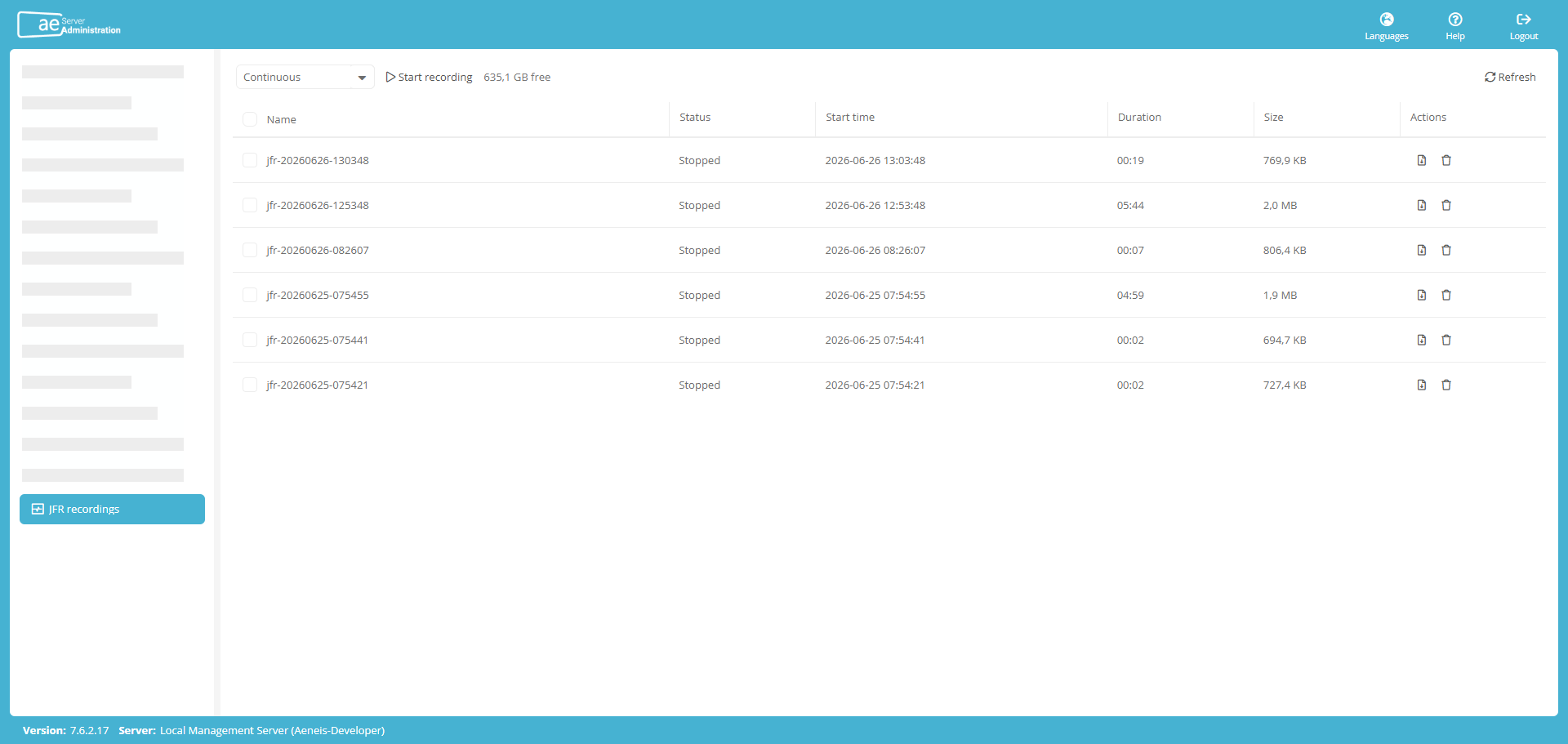
Open Java Flight Recorder
To open the Java Flight Recorder, click the corresponding entry in the ServerAdministration navigation pane.
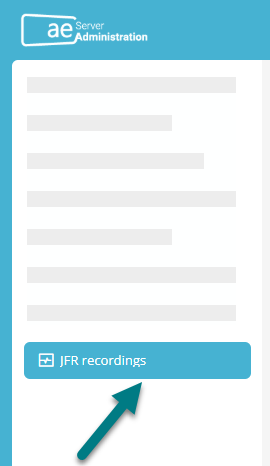
View basic information about recordings
All running and stopped recordings are displayed in the table in the JFR recordings section.
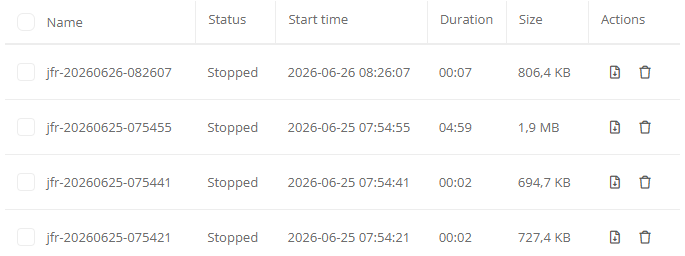
Here you can see the following basic information about each recording:
-
Name of the recording, including the creation date and start time
-
State
-
Start time
-
Duration
-
File size
-
Download and delete options for completed recordings
-
Stop button for recordings in progress
Set recording mode
Using the header in the JFR recordings section, you can specify whether Aeneis should perform your next recording in continuous or detailed mode.
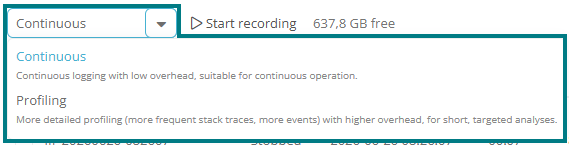
Continuous: Continuous recording for continuous operation with low overhead
Profiling: Detailed profiling for brief, targeted analyses with denser stack traces, more events, and higher overhead
Start and stop recordings
To start a recording, click the corresponding button in the header of the JFR recordings section.

Hinweis: Next to the Start button, you can see how much memory is still available for JFR recordings.
As soon as you start the recording, it is added to the table and is marked as running. In the Duration column, you can see how long the recording has been running. In the Actions column, you can stop the recording by clicking the corresponding button.

Hinweis: Recordings stop automatically if they use more than 250 MB of storage or last longer than 4 hours.
Download recordings
You can download all the completed recordings that you see in the table by clicking the corresponding button in the Actions column.

Download multiple recordings
To download multiple recordings, check the box next to the relevant recordings.
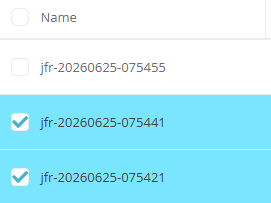
To download all completed recordings, check the box in the table header.
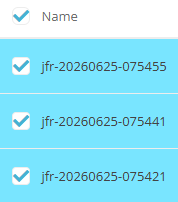
In the header of the JFR recordings section, you will then be prompted to download the selected logs as a ZIP file.

Delete recordings
You can delete all completed recordings that you see in the table by clicking the corresponding button in the Actions column.

Delete multiple recordings
To delete multiple recordings at once, check the box next to the relevant recordings.
To delete all completed recordings, check the box in the table header.
Next, click the corresponding button in the header of the JFR Records section to delete the selected recordings.

Update recordings
To ensure that the list of recordings is up to date, there is an " Update button in the JFR recordings section.

Location in the application directory
By default, all logs are stored in the jfr folder within the Aeneis application directory.
If you use the -Daeneis.jfr.dir start parameter, you can specify an alternative directory for storing the recordings.