My responsibilities
By clicking on My responsibilities, you can open your own employee profile via the Portal navigation.
Voraussetzung: You will only see the My responsibilities entry in the page navigation if it is activated for the Portal and your Aeneis user is linked to an employee object. For more information, see Activate My Dashboard for the Portal and Link employee to Aeneis user.
Functions and areas of your employee profile
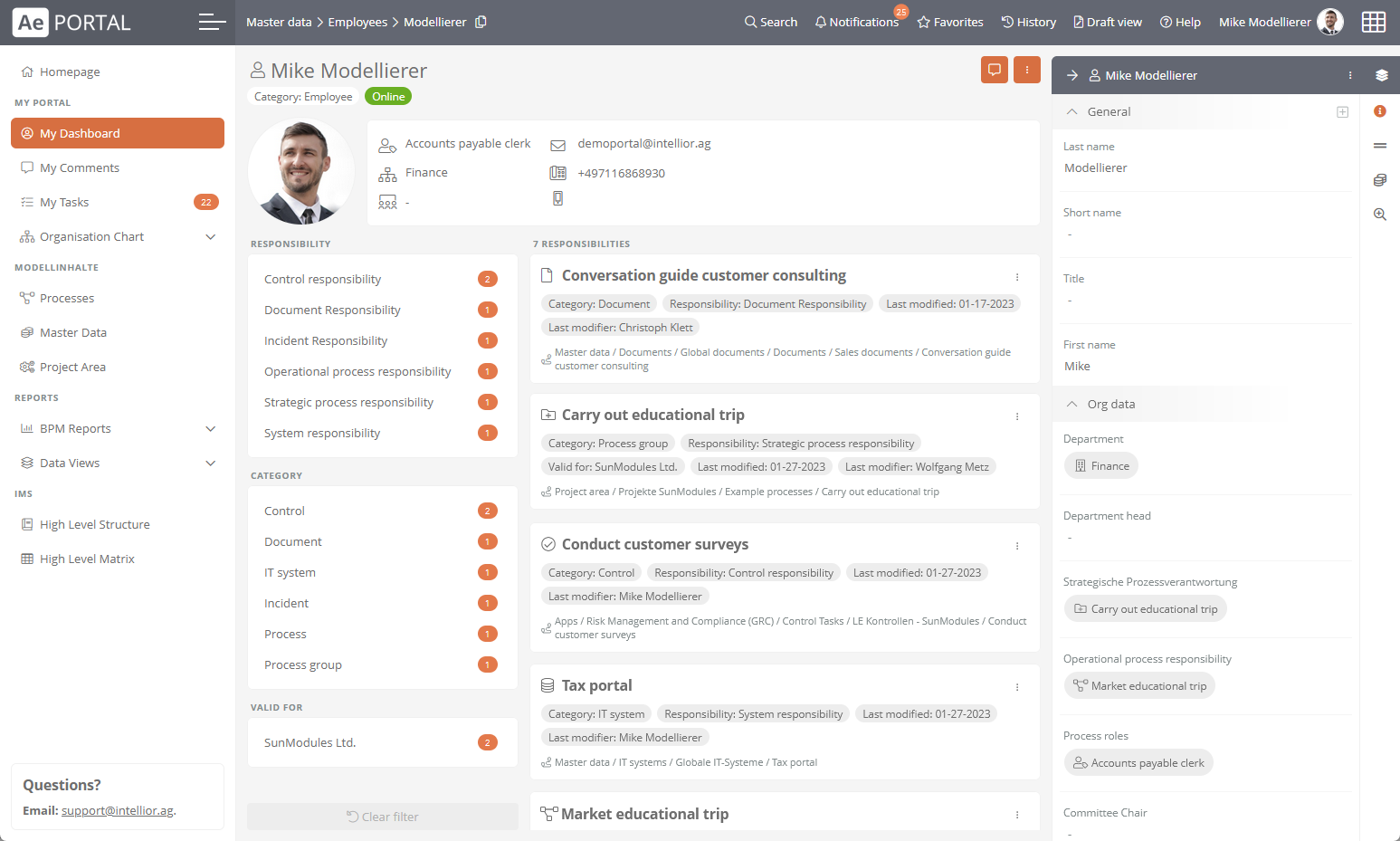
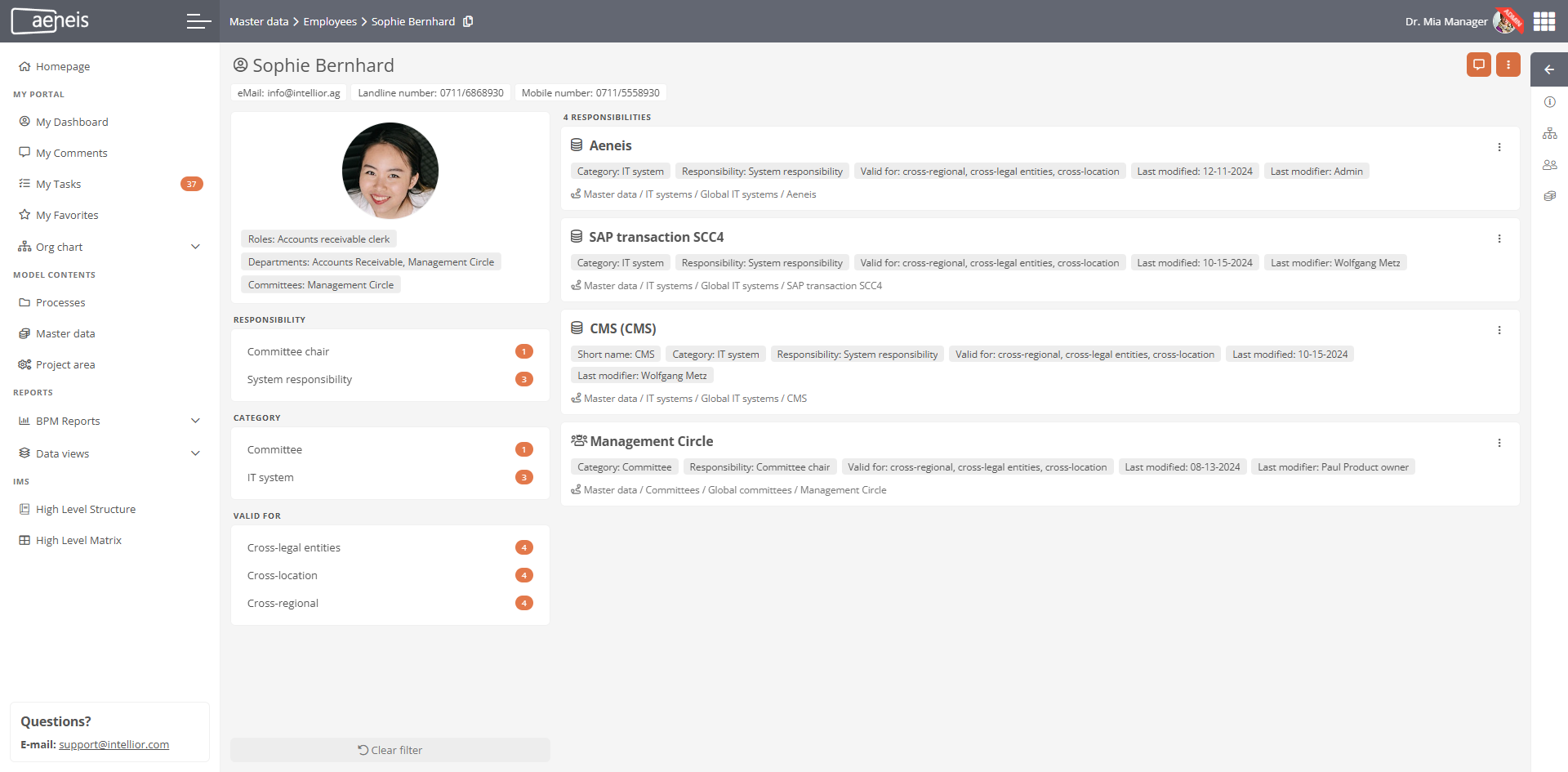
In My responsibilities you can see your employee data and responsibilities.
Your employee data
You can see the most important data of your profile at the top left:

Hinweis: You can see all the details of your employee object in the properties area in the right-hand sidebar and can edit them if you have write permissions.
Your responsibilities
You can see your responsibilities in the company in the Responsibilities area. Depending on your permissions, you can execute certain actions directly for the selected object via  .
.
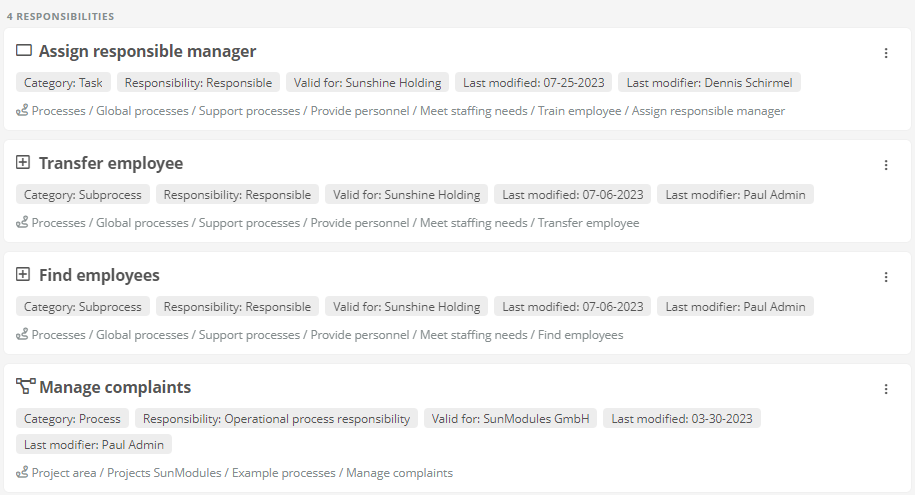
Hinweis: Once you have selected the respective object, you will see the object properties in the right-hand sidebar and can edit them if you have write permissions.
In addition to the responsibilities you have as an employee, you will also see responsibilities related to your roles or job positions.
Beispiel: In the dashboard, you can see the responsibility for a task that has been assigned to your role at the accountable level in a process.
In the left-hand area, you can filter your responsibilities according to certain criteria and restrict the display:

My process involvement
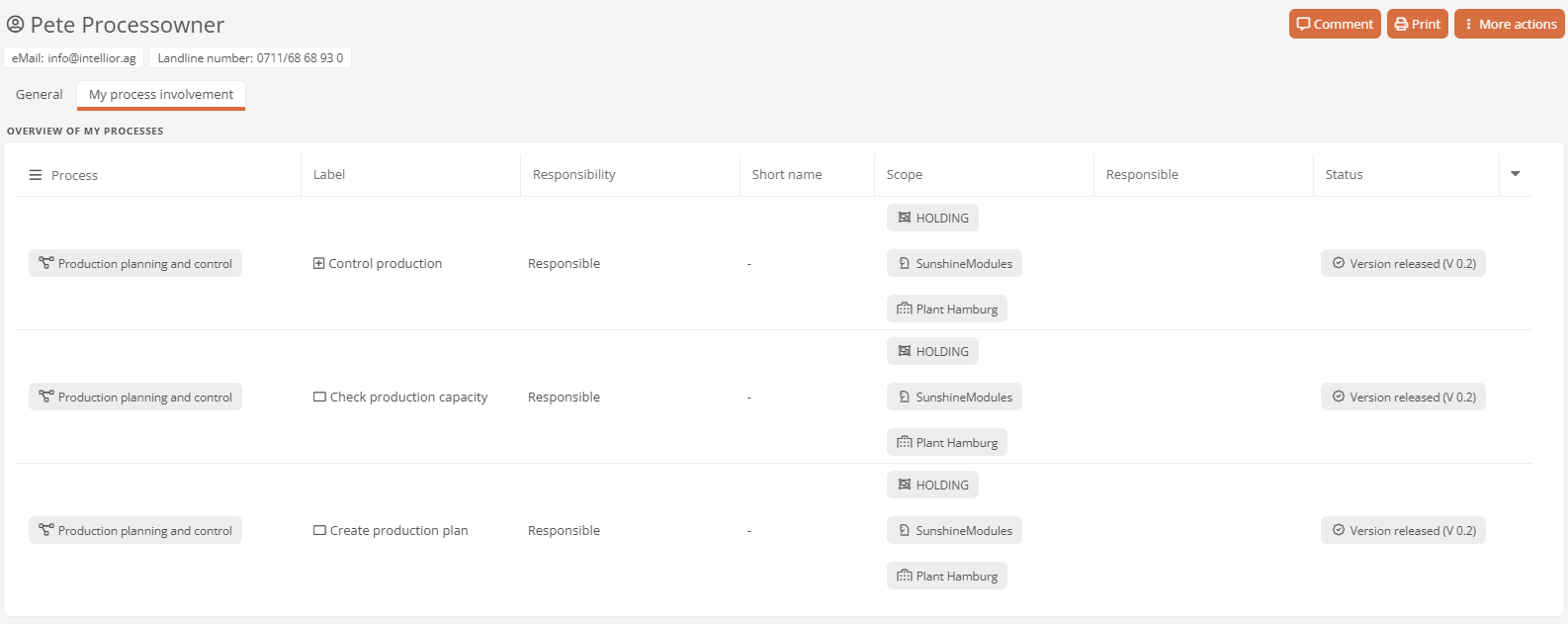
The My process involvement tab opens a dashboard that shows the processes in which your role is assigned in the RACI attributes.
| Column | Description |
|---|---|
| Process | This shows the process in which your role is assigned in a RACI attribute of an activity, event, or gateway. |
| Label | This shows the activity, event, or gateway in which your role is assigned in a RACI attribute. |
| Short name | This shows the short name of the activity, event, or gateway. |
| Responsibility | This shows whether you are assigned as Responsible, Accountable, Consulted, or Informed. |
| Scope | This shows the scope of the activity, event, or gateway. |
| Responsible | This also shows who the operational process manager is. |
| State | Here you can see various information on the versioning status of the activity, event, or gateway. |
Access via homepage
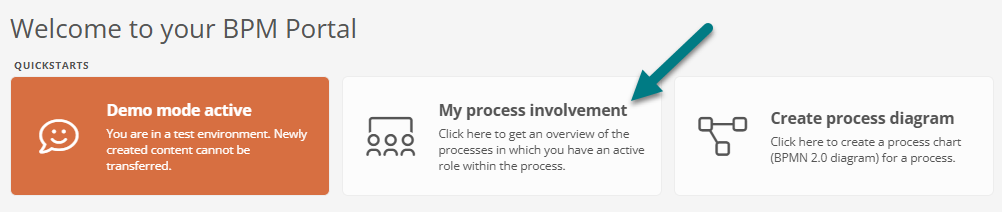
On the homepage of the Portal, you will find a corresponding quickstart, which you can also use to navigate to the dashboard.
Employee object formats
Your colleagues' employee profiles are identical to the functions and areas of your own employee profile.
Hinweis: If your colleague has enabled the corresponding display in the user settings, you can see in their employee profile whether they are currently online or offline.
Siehe auch: You can find more information on the absence of employees under Substitution function.
 Related Topics