LeanIX Synchronization
Instructions:
-
Open the WebModeller or the SystemAdministration
-
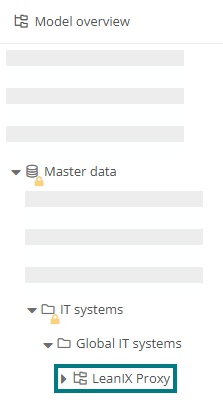
In the model overview, create a LeanIX folder under an IT system (folder):
-
Open the properties of the LeanIX folder and configure it as follows:
Properties Description Configuration Applications The applications and interfaces that have already been synchronized from LeanIX to Aeneis are displayed here.
Hinweis: Additional fact sheet types are synchronized in their own category attributes within the LeanIX folder. For more information, see Import fact sheet types.
Url Enter the URL of the LeanIX system here (example: https://de.leanix.net). Client Id You can leave this field empty, as the API token is used by default.
Client secret
Enter the token of LeanIX here. You can create the token in two ways:
-
(Recommended) Create a technical user in the LeanIX Administration and assign a name, such as Aeneis.Integration. In this step, LeanIX automatically generates the client secret once, which you then enter here.
-
(Not recommended) Generate an API token for an existing user in LeanIX and enter it here.
Hinweis: If you want to export objects to LeanIX, the token in LeanIX must have the read permission fact_sheet_fields:read:process:externalid. If read permission is missing, the export to LeanIX is skipped.
Import user Here you can specify a user if the synchronization should not run via the administrator in Aeneis. Import language Enter the language abbreviation of the language for the synchronized objects here. Trigger (cron expression) Here you can store a trigger for an automated synchronization. Paper bin The objects that have been deleted or archived in LeanIX and deleted in Aeneis are displayed here. Exported processes Here you can reference process folders, process groups and processes whose child objects are to be transferred from Aeneis to LeanIX.
Hinweis: Objects that are stored in the Exported processes are not transferred themselves, only their children and referenced objects at child level.
Beispiel: If you want to export level-1-processes and their children to LeanIX, select the respective parent objects here, e.g. the process folders Management processes, Core processes and Support processes.
Beispiel: If you want to export selected level-1-processes, create the process folder To LeanIX transferred processes in the model overview, for example, where you reference the relevant level-1-processes. You then store this folder under Exported processes.
Export only released objects If you enable this option, only children and references of objects that have a version are exported.
Ausnahme: If a level-1-process is not versioned but a subordinate level-2-process has been released, the level-1-process is also exported to represent the parent-child relationship in LeanIX.
Export levels of the processes Enter here the number of levels to be considered when synchronizing processes from Aeneis to LeanIX.
Hinweis: References below the first transferred level are no longer output, but only main objects.
Hinweis: The value 3 is used by default.
Hinweis: If LeanIX allows fewer hierarchy levels maxHierarchyLevel, objects are exported only up to that level, even if you enter a higher value here. Objects that have already been exported to LeanIX at a lower level are archived in LeanIX.
Beispiel: Under Exported processes you have created a folder whose child processes are to be transferred to LeanIX only at the first and second levels. In this case, change the value to 2.
Proxy host You can optionally specifiy the hostname or IP address of the HTTP proxy here. If the proxy host and proxy port are configured, all outgoing token requests and GraphQL calls are routed through the proxy.
Proxy Port Specify the HTTP proxy port here.
Hinweis: The proxy is used only if both the proxy host and the proxy port are configured.
Required tags Here you can specify the tags that a LeanIX fact sheet must have in order for it to be transferred to Aeneis. For each line, enter a condition in the format TagGroup:TagName. The tag group is optional. If you enter multiple criteria, only those fact sheets that meet all of them will be transferred.
Optionally, you can restrict a condition to a specific fact sheet type using a third parameter: TagGroup:TagName:FactSheetType.
Hinweis: Conditions without a fact sheet type apply only to Applications andInterfaces. Other fact sheet types will only be filtered if you specify a condition based on the fact sheet type. To learn how to import other types of fact sheets, see Import fact sheet types.
Beispiel: With the lines Region:Europe and Status:Active:BusinessCapability, applications and interfaces are transferred only if they have the Europe tag in the Region group. Fact sheets of the BusinessCapability type are transferred to Aeneis only if they have the Active tag in the Status group.
Exported categories Here, you can specify categories to limit the export to LeanIX to objects in those categories. If you do not specify a category, all objects will be exported.
Hinweis: Once you have specified categories here, only items in those categories will be exported.
Hinweis: If an object is not exported because of its category, its child objects will not be exported either.
Beispiel: A process consists of five activities and one subprocess. If you want to export process groups, processes, and subprocesses to LeanIX but not activities, select the Process Group, Process, and Subprocess categories here.
-
-
Save the settings
Result:
During the next synchronization triggered by the stored trigger, the corresponding objects are transferred from LeanIX to Aeneis or also from Aeneis to LeanIX.
Descriptions are transferred in both directions, including their formatting, such as paragraphs, highlighting, lists, and links. Images in descriptions are not transferred when exporting to LeanIX; only their alt text is included.