Password Policy & Encryption
For high security, you can enable password policies in your database. These password policies must be met as a minimum for new passwords:
-
At least 12 characters (by default 12 characters are defined, the number can be changed via the database property Password length)
-
At least one capital letter
-
At least one lowercase letter
-
At least one number
-
At least one special character (!@#$%&*()_+=|<>?{}/\[]~-:;,."´`')
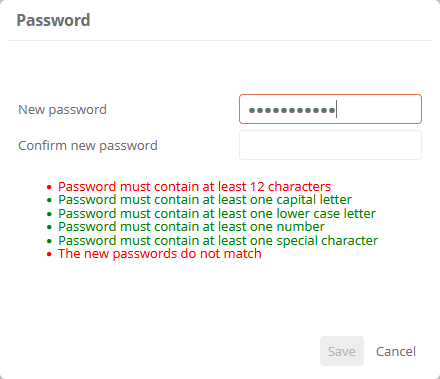
If password policies are enabled, they will be taken into account when a new password is assigned. New passwords must then only comply with the new password policy.
Hinweis: The password policy does not apply to synchronized users (via LDAP, AZURE AD, or similar). Then, the password policy of the other system applies.
Hinweis: Password changes are only possible if the new password has never been used for the user before.
Enable password policies
Password policies are disabled by default in new databases. In databases, you can subsequently activate them in the database properties.
Siehe auch: For information on how and where to activate the property, see Database object and properties.
Assign new passwords:
After activation, new secure passwords must be assigned to users. They will be prompted to enter a new password the first time they log in.
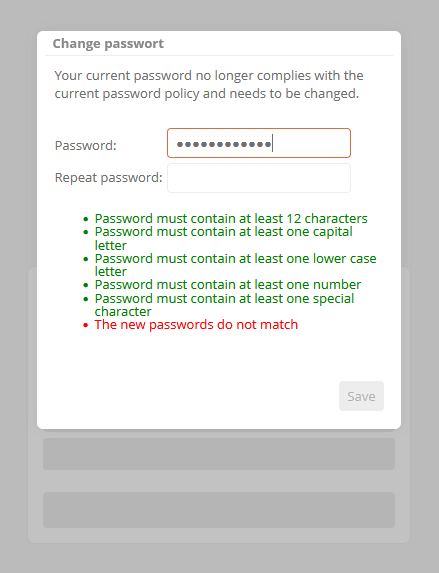
When the administrator logs on to a database for the first time, they must assign a secure password via the ServerAdministration.

Achtung: If a user has set a blank password, they will not be able to log in after the password policy has been activated. The administrator must assign a new password for this user in the UserAdministration!
Siehe auch: Chapter Manage database.
Password validity period
You can specify that the password of individual database users expires after a certain period of time. Once it has expired, the user must change the password the next time they log in.
Instruction:
-
In the database properties, under Password validity (days), specify the number of days after which passwords expire
-
Open the UserAdministration
-
In the left pane, in the Users tab, select the database user whose password is to expire
-
In the properties, in the Configuration group, enable the Password expiration enabled property
Result:
When the password has expired, the user is prompted to enter a new password the next time they log in.
Hinweis: The validity period does not apply to synchronized users (via LDAP, Azure AD, or similar).
Hinweis: Logins to the REST API are rejected if the password has expired or does not comply with the password policies. To assign a new password, the user must log in via the Aeneis login dialog, e.g. in the Portal.
Achtung: If the password policies are not enabled, a user can also set a blank password when changing their expired password. Therefore, also enable the password policies. Users who already have a blank password will then no longer be able to log in (see Enable password policies).
Password encryption
Passwords are encrypted in Aeneis using the following hashing methods:
-
Argon2 Hash
-
SHA-256 Encryption
 Related Topics