Database object and properties
In the SystemAdministration you have the option of making settings to the database.
Instruction:
-
Open the database configurations in the SystemAdministration in the status bar:

-
Make the settings in the database properties:
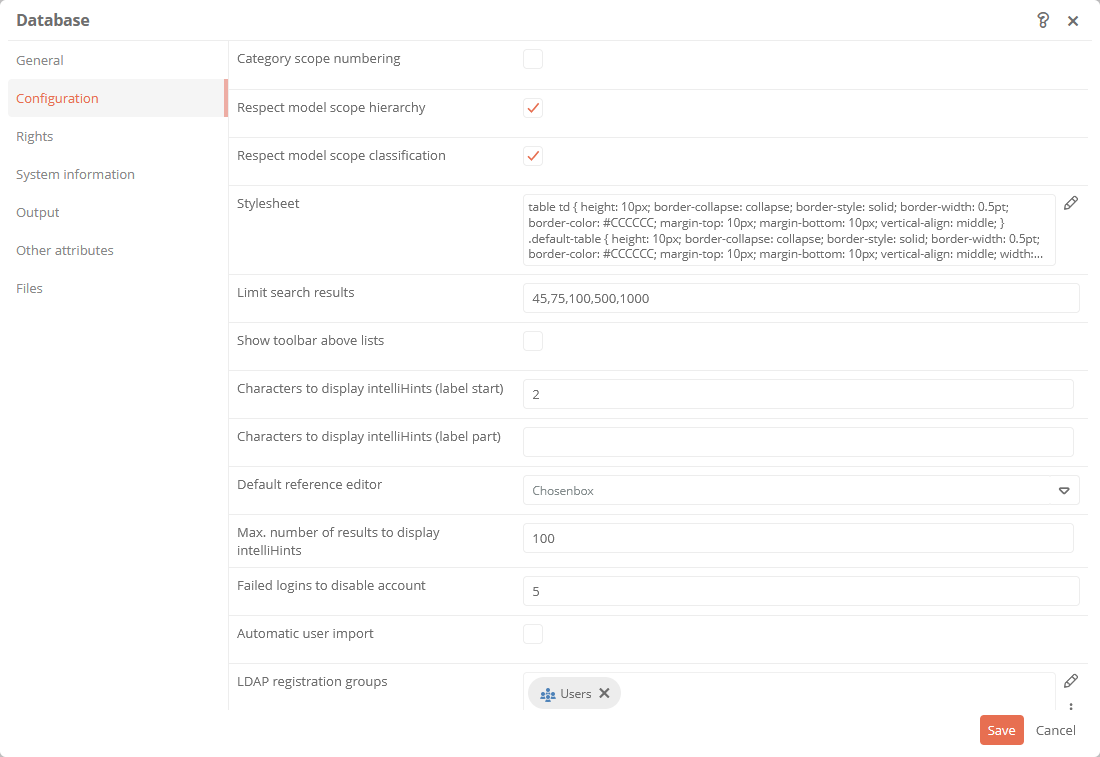
Setting
Description
Other attributes Web-Html-Editor configuration (js-File) Here you can store a js file that you can use to customize the text editor (CKEditor) and activate plugins there, for example.
Siehe auch: For an example of how to customize the text editor and integrate a full-screen mode, see Configure full screen mode for the text editor
Configuration Category specific numbering
When an object is created, an automatic object ID is assigned by the system. If you activate this property, the ID is structured as follows:
category_name_consecutive_number (e.g. Employee_1 for an employee)
Respect model scope hierarchy
Siehe auch: Chapter Observe classification and hierarchy of scopes.
Respect model scope classification
Siehe auch: Chapter Observe classification and hierarchy of scopes.
Stylesheet Here you can define the styles that can be used for print reports in addition to their templates or for tables in editors in the Aeneis FatClient. Limit search results
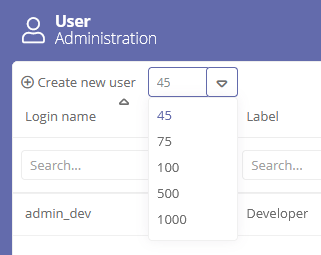
You can use this setting to define the selection options for the drop-down list that is displayed in the UserAdministration for the number of search results:
Show toolbar above lists
Use this option to set the toolbar to be displayed above the list in reference editors in the FatClient instead of to the right of it.
Enter the minimum number of characters that must be typed in the quick reference of objects before the search starts. The search then searches for all objects whose names begin with the characters you have typed in.
If more than the number of characters defined in this property are typed in the quick reference, the system automatically searches for the typed word (or part of a word) (even within words).
Number of characters to display quick references (label part)
Enter the minimum number of characters that must be typed in the quick reference of objects before the search starts. The search then searches for all objects whose name contains the typed word (part).
If more than the number of characters defined in the Quick reference minimum number of characters label start property are typed in the quick reference, the system automatically searches for the typed word(s) (even within words).
Default reference editor
Here you can set whether the standard reference editor is displayed in workflow masks as a table or a box.
Enter the maximum number of search results to be displayed in the quick reference here.
If more objects are stored in an attribute than specified here and you click on the attribute's chosenbox in the sidebar of the Portal, the extended reference editor opens, in which all stored objects are listed. You will also be notified that the permitted number of search results has been exceeded:

Failed attempts until account locked
Enter the number of failed attempts that users may have when logging in before their accounts are locked.
If this option is activated and an LDAP server or authentication via Spring Security (SSO) is set up, the users are automatically imported into Aeneis.
Siehe auch: For more information, see LDAP interface and Authentication in Aeneis via Spring Security.
LDAP registration groups Reference here the user groups to which users are added that are automatically imported into Aeneis via LDAP or ADFS. See Automatically import user property. Maximum file size (Bytes)
Enter the maximum size of files (e.g. documents, graphics, videos) in bytes that can be loaded into the Aeneis database per file. Maximum size is 2,147,483,647 bytes.
Request user name and password for electronic signature
With this option, both the user name and the password are requested for the electronic signature (e.g. in workflows). If this option is deactivated, the currently logged in user is preselected and only the password is requested.
Disable paste (Ctrl+V) for passwords
With this option, users cannot copy and paste their password when logging in, but have to type it in manually.
Apply copy suffix to
Set here whether copied objects are marked as copies after pasting.
-
All objects: all copied objects are marked with the suffix copy.
-
Main objects: only copied main objects are marked with the suffix copy.
-
No objects: copied objects are not marked as such.
Siehe auch: For more information, see Copy model objects.
Show parameter
-
Enabled: The parameter concept for BPMN modeling is active in the database.
-
Disabled: The input/output concept for BPMN modeling is active in the database.
Siehe auch: You can find detailed information under Migrate to input/output concept.
Password policies are active
This option is used to validate whether the guidelines are adhered to when assigning passwords (options Password lengthand High password complexity).
Enter the minimum number of characters passwords must have at least.
This option is used to check whether the following minimum requirements are met when assigning passwords:
-
min. a lower case letter
-
min. a capital letter
-
min. a number
-
min. a special character
Enter the number of days after which database user passwords expire. By default, the value is set to 90.
Hinweis: The validity period applies only to database users for whom the Password expiration enabled property is enabled in the UserAdministration.
Siehe auch: For more information, see Password validity period.
Enter the file types that may be uploaded to Aeneis here.
Beispiel: If you enter cdr here, you can upload this file type.
Tipp: For this property, click on
 and enter the corresponding file type in a new line via the Set attribute value dialog.
Hinweis: When a file is uploaded to Aeneis, the system always checks whether the file format is valid and may be uploaded.
Inflation ratio for ZIP files
Set the limit for ZIP files that may be uploaded to Aeneis here. The limit value determines how high the compression of the data in the ZIP file may be in order to prevent ZIP bombs in Aeneis. The default value is 0.01 (1 %), i.e. if the compression is over 1 %, the ZIP file is recognized as a ZIP bomb and the import will be aborted.
Reserve WebModeller license -
Enabled: With this option, a WebModeller license is reserved as soon as a user logs into the Portal. The option is enabled by default.
-
Disabled: WebModeller licenses are assigned only when the WebModeller is opened.
Commentable categories You can read about what you configure here under Configure commentable categories.
Automatically update imported users For what you configure here, see Update users automatically.
Synchronize imported users with external groups For what you configure here, see Synchronize users with groups.
Maximum number of index search hits Here you can enter the maximum number of search hits to be evaluated in the index search in Aeneis. The smaller the value, the faster the search. Default value is 500. Indexsearch mentions hit limit This property is for internal use to define how many mention objects are searched for in the background at maximum and should not be changed!
Check view authorizations on all workflow statuses By default, Aeneis checks all possible statuses of the object to see whether the user is allowed to see the object in these statuses.
If you disable the property, Aeneis only checks the statuses that are currently active and referenced in the status property Relationship statuses to see whether the user is allowed to see the object in these statuses.
Hinweis: This property has a positive impact on the performance of the Portal. However, the option should only be deactivated in cooperation with your Aeneis consultant due to the configuration effort involved.
Use authorized workflow execution cache If you activate this property, all of a user's execution authorizations for workflow objects are cached across sessions.
Hinweis: Up to version Aeneis 7.4, the corresponding cache is emptied when a session is ended.
Hinweis: Transitions that check whether logged-in users are authorized to execute are not cached by default. Use the special function All users with write permissions for these transitions.
Tipp: This property speeds up the initial loading of workflow objects. Only deactivate the property if task lists and workflow actions do not update as expected. If you have deactivated the property, the workflow objects of the respective user are determined individually again as soon as he/she has logged in again.
Use model object icon cache Model object icons can be cached with this property.
Hinweis: When a session has ended, the cache is emptied.
Hinweis: This property has a positive impact on the performance of the Portal.
Use organization chart cache When this feature is enabled, the Portal displays a cached version of the org chart. This property has a positive impact on the performance of the Portal.
Hinweis: Any changes to this setting will take effect as soon as you sign out after saving. If you disable the property at a later time, the Portal will always display the current version of the org chart thereafter. It is not necessary to restart the server.
Siehe auch: Org charts
Use substitution rules You can use this property to disable substitution tasks with the following effects:
-
Substitution tasks can no longer be carried out via corresponding transitions.
-
Substitute tasks are no longer displayed in My Tasks.
Hinweis: Even if the option is disabled, users can still create substitution rules.
Siehe auch: Substitution function
Use network diagram cache When this feature is enabled, the Portal displays a cached version of the network diagram. This property has a positive impact on the performance of the Portal.
Hinweis: Any changes to this setting will take effect as soon as you sign out after saving. If you disable the property at a later time, the Portal will always display the current version of the network diagram thereafter. It is not necessary to restart the server.
Siehe auch: Network diagrams
Use usage data collection With this option, usage data is transferred from Aeneis to intellior in order to optimize the software and adapt it to your needs.
Hinweis: Aeneis transfers the data in compliance with GDPR. No personal data or database contents are transmitted.
Hinweis: This option is only relevant if you use Aeneis as a cloud service. No usage data is transferred for on-premise installations.
Show unused objects If you enable this option, objects that have no main assigned child objects and are only used with the parent object are marked with the sparkles icon.
Siehe auch: Symbols of model objects in the model overview
Allow online speech recognition If this option is disabled, users will only have access to local speech recognition. In this mode, no data is transmitted outside of Aeneis.
When this option is enabled, users have the additional option to send their voice input to their browser's online service (e.g., Chrome, Edge, or Safari).
Hinweis: When a user uses the online speech recognition, their recording is processed outside of Aeneis. This may involve the transfer of data to countries outside the EU. Online speech recognition is automatically disabled again at the end of the session. During the session, users can switch back to local speech recognition at any time.
Beispiel: How users enable online speech recognition during their session is described in AI modeling with SmartModel.
-